

How to change the hyperlink colour in Elementor? The default pink Elementor hyperlink colour can be changed to a colour that match your brand. In this tutorial, I will show you how to change the hyperlink colour in Elementor.
1. Edit with Elementor
Now that you’re logged in to your dashboard, navigate to any page of your website and edit it with Elementor.
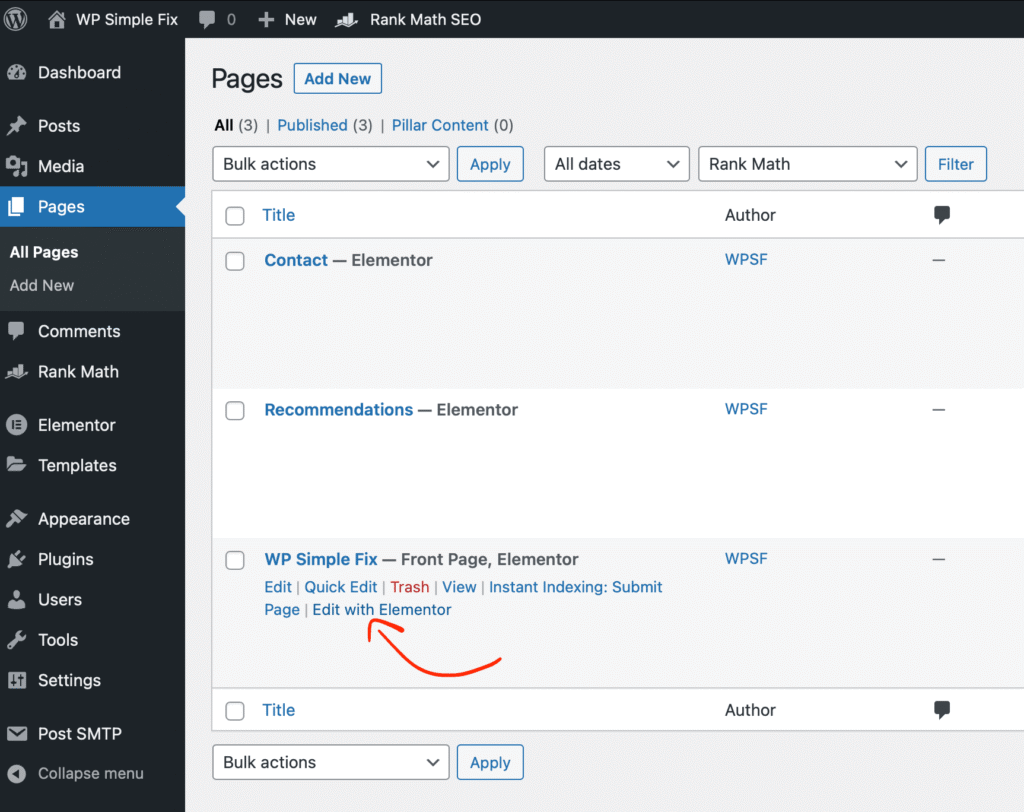
2. Navigate to the “Site Settings”
Now that Elementor is loaded, you’ll be able to navigate to the “Site Settings” to change the colour of all hyperlinks on your website! To do that, simply click on the hamburger menu on the top left of your screen.

Then, you can click on “Site Settings” to open the settings of your website where you will have the option to change the default hyperlink color of Elementor.

3. Set the new hyperlink colour
Now that you’re in the settings of your website, it’s time to change the hyperlink colour. To do that, navigate to “Typography” and then, scroll down to “Links”.
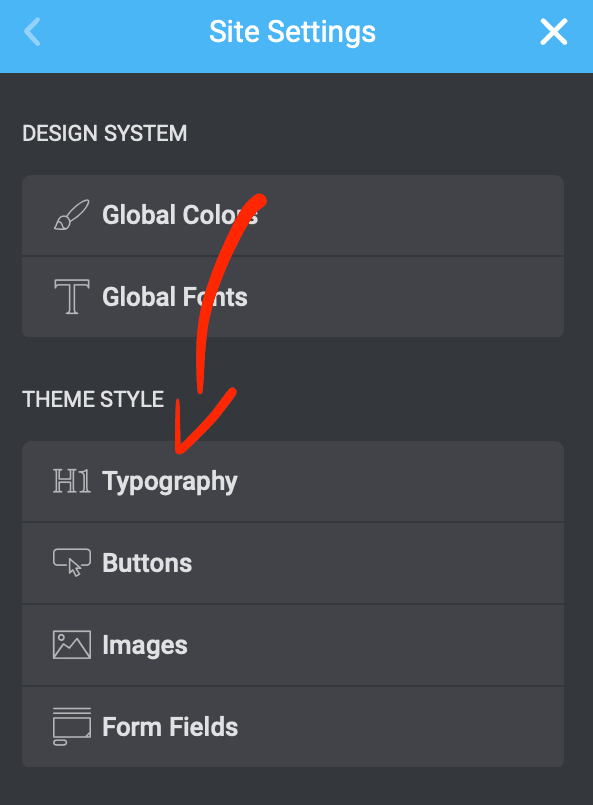
Here, you will be able to change the colour of all the hyperlinks site wide. In the same section, you’ll be able to change page header settings.
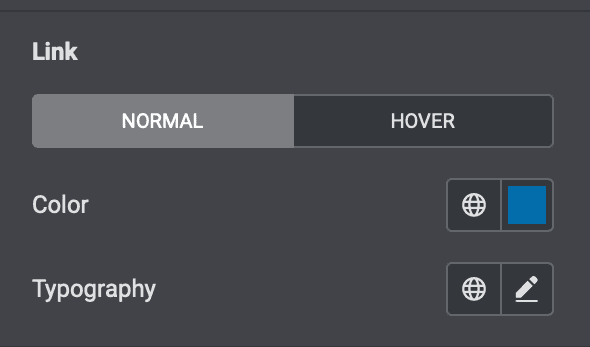
4. Save your edits
Once everything you wanted is changed, don’t forget to press the blue “UPDATE” button to save your edits. All the links on your website should now be changed from the default pink link to the new colour you selected.
If you liked this article, then please share it on social media.