

This will be a quick tutorial, on how to use shortcodes in Elementor.
Elementor empowers users to design visually striking websites with ease. Among its standout features is the ability to harness shortcodes. Shortcodes are small snippets of code that bring dynamic content and functionality to web pages without requiring complex HTML or CSS.
What Are Shortcodes?
Shortcodes act as placeholders for more intricate code or dynamic content that can be generated by plugins or scripts. Enclosed in square brackets, shortcodes are inserted directly into the Elementor editor, and when the page is rendered, they are replaced with their corresponding output.
Adding Shortcodes to Elementor
In Elementor, incorporating shortcodes is a breeze.
- Search for the shortcode widget.
- Simply drag and drop the Shortcode onto your page section. This widget serves as a container for your desired shortcode.
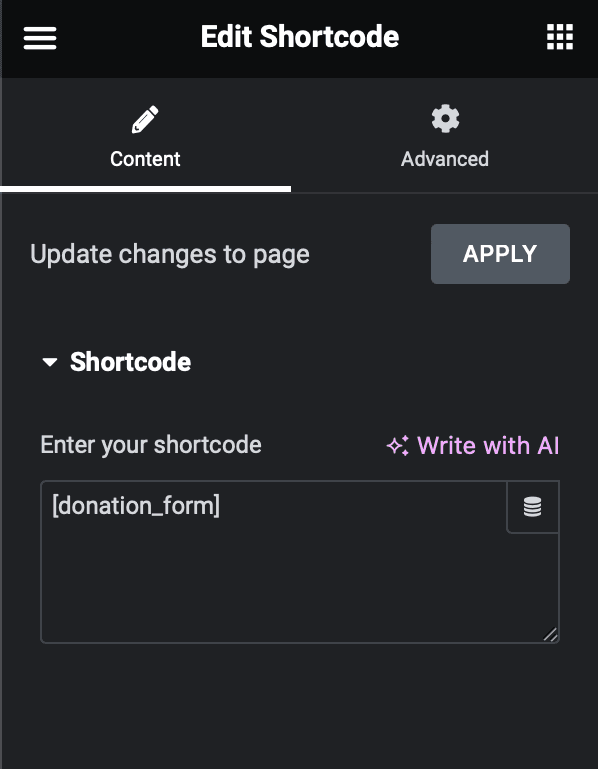
- In the widget’s settings panel, you will find an input field where you can enter the shortcode you wish to utilise.

Flexibility
Elementor allows you to combine multiple shortcodes within a single page or section. This opens up endless possibilities for creating highly customised layouts and interactive elements. The beauty of shortcodes lies in their flexibility and customizability.
Shortcodes serve as a powerful tool in Elementor’s arsenal, enabling you to infuse your WordPress website with dynamic content and enhanced functionality effortlessly. By understanding how to leverage shortcodes effectively, you can unlock the full potential of Elementor and craft visually stunning, feature-rich web pages.