

This will be a quick tutorial, on how to roll back page or post content in Elementor, assuming you’re using the latest version.
Navigate to the page or post you made a mistake or change of mind and want it back to how it was.
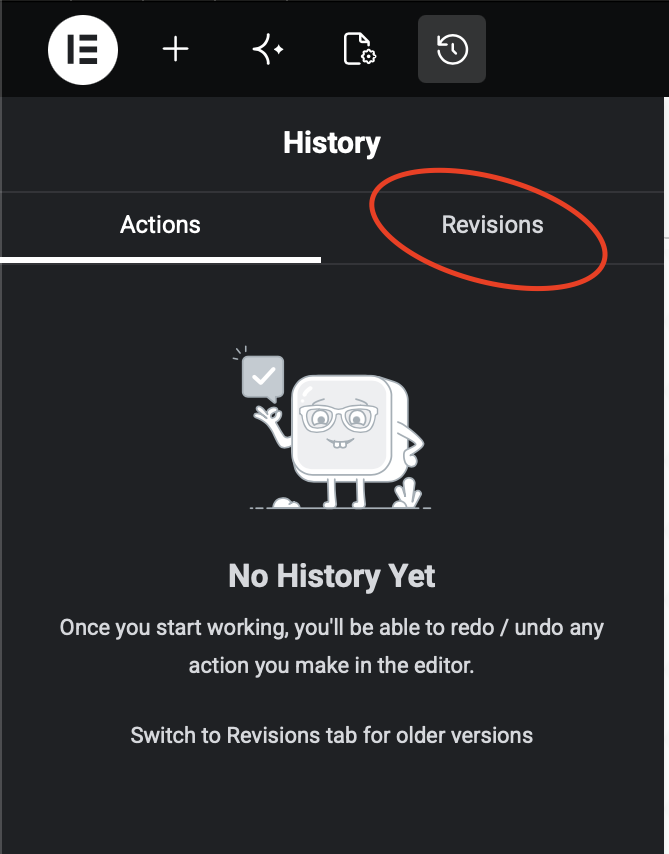
- Click the clock roll back icon ( top left )

Revisions
Then click the “Revisions Tab” and select the revision you wish to roll back too, then click the “Apply” button then publish page or post.
You’re done!