

Errors can be annoying, particularly if they appear mysterious. The “missing e_notes” error is one such problem that users could run into. Don’t worry if you’ve encountered this issue; we’ve got you covered. This tutorial will help you resolve the missing e_notes error by guiding you through its potential causes and fixes.
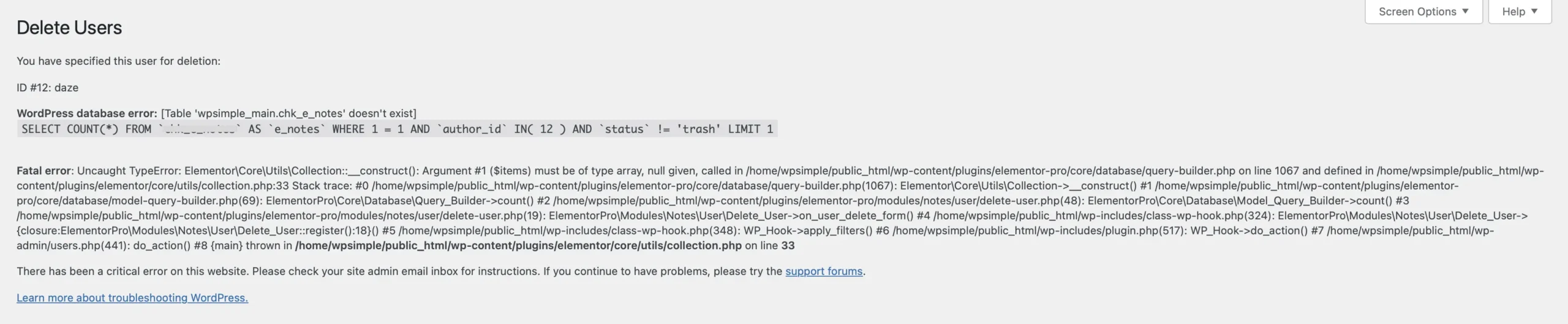
Understanding the “Missing e_notes” Error
When a system or application cannot find a necessary set of electronic notes (e_notes), the “missing e_notes” error usually happens. This can happen for several reasons:
-
Corrupted or Missing Files: If the required e_notes files are missing or corrupted, the application won’t be able to retrieve them.
-
Incorrect Configuration: The software may be looking in the wrong location for the e_notes due to misconfigured paths or settings.
-
Database Issues: If e_notes are stored in a database, issues such as missing records, incorrect queries, or database corruption can trigger the error.
-
Software Bugs: Sometimes, a bug in the software itself might be causing the issue, requiring an update or patch.
-
Permission Issues: If the application lacks the necessary permissions to access e_notes, it might return this error.
Identify the issue
1. Check for Missing or Corrupted Files
-
Navigate to the directory where e_notes should be stored.
-
Ensure that the files exist and are accessible.
-
If they are missing, try restoring them from a backup.
-
If they are corrupted, see if you can replace them with a fresh copy.
2. Verify Configuration Settings
-
Open the application settings.
-
Look for any configuration related to e_notes storage or paths.
-
Ensure that the correct directory or database is specified.
-
Restart the application after making changes.
3. Inspect the Database
-
If your e_notes are stored in a database, run a query to check if the records exist.
-
Use database repair tools to fix any corruption.
-
Restore a backup if records are missing.
-
Ensure the database user has proper read/write permissions.
4. Update or Reinstall the Application
-
Check if there are any updates available for the software.
-
If updates are available, install them and restart the application.
-
If the issue persists, try uninstalling and reinstalling the software.
5. Check User Permissions
-
If the e_notes are stored in a restricted directory, ensure that your user account has the necessary access rights.
-
On Linux server, use the
chmodandchowncommands to set the correct ownership and permissions. - Learn more about WordPress file permissions.
Fix the issue ( The most common issue )
The most common issue is where the e_notes table is missing in the database.
Here we have kindly provided the table for e_notes for you to import into your database.
- Download the file ( e_notes db-table )
- Using a text editor, edit the file and replace xxx “DB-prefix” with your database prefix.
- Then, If you’re using cPanel – Login
- Then go to phpmyadmin
- Select the correct database
- then go to import tab. Then upload the file.
If the e_notes table is present and thats not the issue, then the next three common issues would be;
- Check your file permissions.
- Check that WordPress is up to date.
- Make sure all plugins are up to date.