

You might occasionally run into a problem where your URL is disabled and uneditable, and greyed out in General Settings. This might be annoying, especially if you need to change the URL of your website. We will talk about how to alter a WordPress URL that is greyed out in this blog post.
The chances are, some code was added to the wp-config file or your theme’s functions file at some point, either by your developer or web hosting provider for what ever reason.
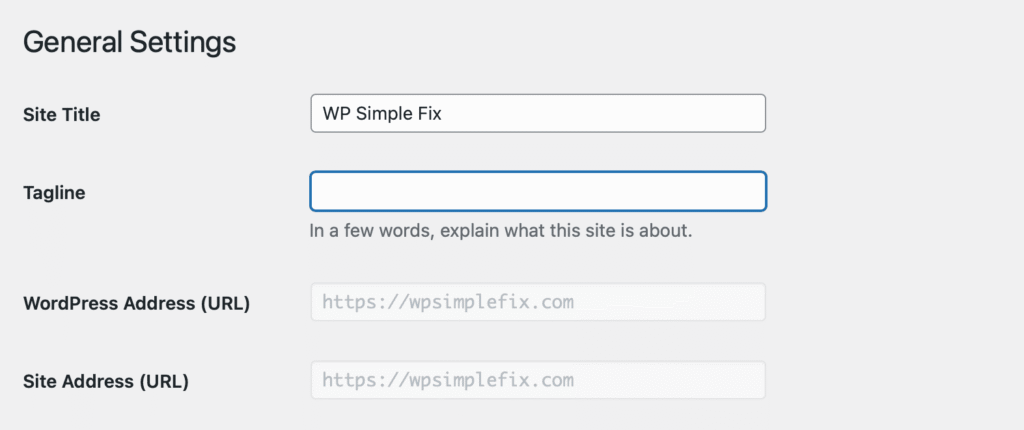
To check and edit this, you will need FTP client ( FileZilla ) or if you’re using cPanel, login to that and go to File Manager. Most common place is in the wp-config file, so lets check that first.
1. The wp-config.php file
Open the file wp-config.php and find these lines, only one may be present.
define( 'WP_HOME', 'https://example.com' );
define( 'WP_SITEURL', 'https://example.com' );
Once removed the line(s) and saved the wp-config file, then it should fix your issue.
Then navigate back to your General Settings page in your WordPress admin area and check that the URL fields, It should now be editable. Then set your new URL in General Settings, and save page.
The lines not in wp-config? Then follow stage 2.
2. The theme’s functions.php file
Via FTP or File Manager, please follow the path below and open functions.php file, go to
/wp-content/themes/your-active-theme-folder/.
Next, you need to check if the following lines is present, normally at the end of the file:
update_option( 'siteurl', 'https://example.com' );update_option( 'home', 'https://example.com' );
If they are present, simply remove the lines and save your functions.php file. Then navigate and check your General Settings page, the URL fields should be editable now.