
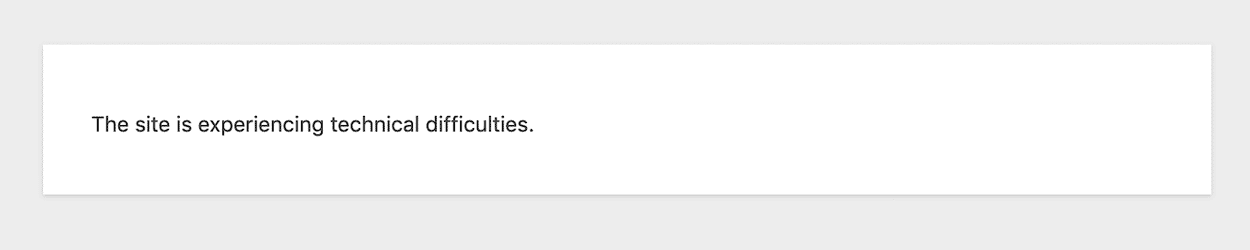
This tutorial will explain on how to access recovery mode in your WordPress site after a critical error. You may see a simple plain white screen or the following error on your website:
When an error occurs, your website should send you an email with further information about the error, along with a recovery link. Sometimes you never receive such email, for various reasons. You can still log in to your administrator account and investigate further.
Visit https://your-domain.com/wp-login.php?action=entered_recovery_mode
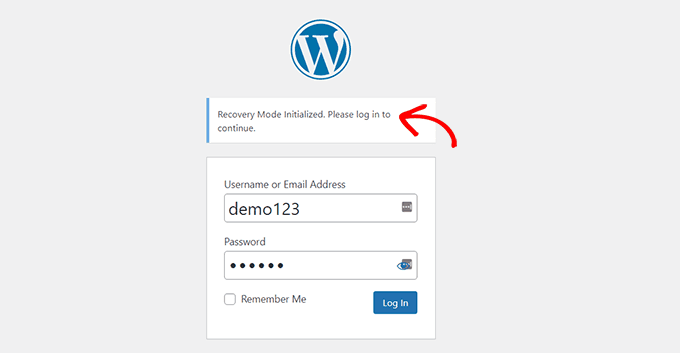
Inside Recovery Mode
Now you’re in recovery mode, this will allow you to login to your web site admin dashboard.
When faced with an error or an issue on your WordPress website, first port of call is to activate the debug log file, it will generate the errors, so you can see if its spicific plugin or theme.
Activate Debug Log File
Warning
Be very careful, when working with this file! If in doubt hire someone to troubleshoot your issues.
- Login to your FTP Client or cPanel file manager.
- Add the following code to your wp-config.php file.
define( 'WP_DEBUG', true ); define( 'WP_DEBUG_LOG', true );Now re-visit your site on a new browser or tab, and not in recovery mode.
Login to your FTP client or File manager, go to your /wp-content/ folder, you will see a file called `debug.log` this file will provide you with more details and tell you which plugin or theme is the culprit.
Check Your Theme
Changing your theme might help you determine if the mistake is particular to the theme you are currently using. Access the WordPress dashboard and navigate to Appearance > Themes section to do so. You can change the theme and evaluate your website to check if the problem continues.
If the problem is fixed with the new theme, it suggests that there was a compatibility issue or a conflict with the prior theme you were using.
Check The Plugins
Deactivating all plugins installed on your WordPress site is another option. Plugins can occasionally conflict with one another or with the theme, resulting in issues.
To deactivate all plugins, navigate to the Plugins section of your WordPress dashboard and pick all of the plugins you want to deactivate. If the error is resolved after disabling plugins, you may move on to determining which plugin is causing the issue.
Begin by reactivating plugins one at a time, evaluating your website after each one. This allows you to determine the particular plugin that causes the fault. Once the problematic plugin has been found, you have the option of keeping the problem plugin deactivated or removing it completely, and searching for an alternative plugin.
This step-by-step approach helps isolate the source of the problem and provides an opportunity to fix the issue, ensuring smooth functionality and uninterrupted access to your site.
Got Malware?
Malware on your website could occasionally be to blame for the problem. You may check and scan your website for harmful code while in recovery mode. You can use a anti-malware plugins, such as MalCare or GOTMLS.