

One of the simplest methods to quickly launch a polished, customisable website is to install WordPress on it. Because of its intuitive interface, the process is much easier if your hosting company uses cPanel.
I’ll show you how to manually and using a one-click installer install in cPanel in this tutorial. Let’s begin!
Method 1: Installing WordPress Using Softaculous (One-Click Install)
Most hosting providers include Softaculous Apps Installer in cPanel, making the installation a breeze.
Step 1: Log in to cPanel
-
Go to your hosting provider’s login page (usually
yourdomain.com/cpanel). -
Enter your username and password.
Step 2: Find Softaculous Apps Installer
-
In the cPanel dashboard, look for the “Softaculous Apps Installer” or “WordPress” icon under the “Software” section.
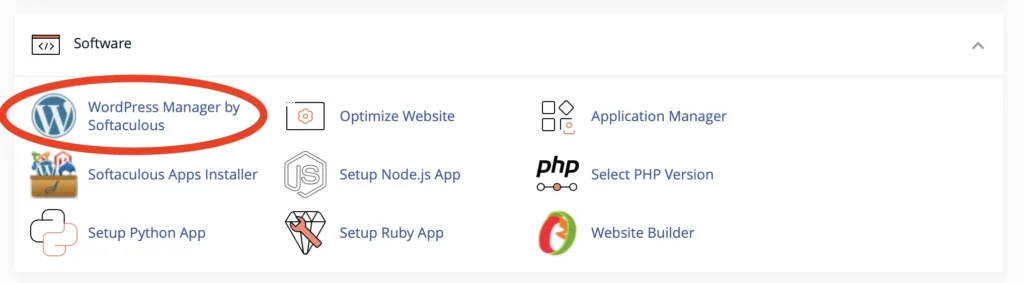

Step 3: Install WordPress
-
Click “Install Now”
-
Fill in the required details:
-
Choose Protocol:
https:// -
Select Domain: Pick the domain where WordPress will be installed.
-
Directory: Leave blank to install on the root (e.g.,
yourdomain.com) or enter a folder name (e.g.,blogforyourdomain.com/blog). -
Site Name & Description: Enter your website’s name and a brief description.
-
Admin Username, Password, and Email: Set up your website admin login credentials.
-
-
Click “Install” and wait for the process to complete.
✅ Done! You’ll see a success message with a link to your WordPress admin dashboard (yourdomain.com/wp-admin).


Method 2: Manual Installation in cPanel
If your host doesn’t have Softaculous or you prefer manual installation, follow these steps:
Step 1: Download WordPress
-
Visit WordPress.org and download the latest version.
Step 2: Upload WordPress Files via cPanel File Manager
-
In cPanel, go to “File Manager”.
-
Navigate to your website’s root directory (usually
public_html). -
Click “Upload” and select the WordPress ZIP file.
-
After uploading, right-click the ZIP file and select “Extract”.
Step 3: Create a MySQL Database
-
Go back to cPanel and find “MySQL Databases”.
-
Create a new database (e.g.,
wp_website). -
Create a MySQL user and assign it to the database with “All Privileges”.
- More information on setting up a database!
Step 4: Run the WordPress Installation
-
Visit your website (
yourdomain.com). -
Follow the setup wizard:
-
Select your language.
-
Enter the database details (database name, username, password).
-
Complete the admin setup (site title, username, password, email).
-
✅ Success! WordPress is now installed. Log in to yourdomain.com/wp-admin to start customizing.
Final Thoughts
Whether you use Softaculous (one-click install) or the manual method, setting up WordPress in cPanel is straightforward. If you’re a beginner, Softaculous is the easiest way, while manual installation gives you more control.
Once installed, explore themes, plugins, and SEO tools (like Yoast SEO) to optimize your site.
If you need more support and tutorials on WordPress and Plugins, visit here.