

How to setup cron jobs? Don’t worry! In this guide, I’ll walk you through the process in simple friendly steps.
If you’ve ever needed to automate tasks on your website—like sending out newsletters, backing up your database, or clearing cache—cron jobs are your best friend. But if you’re new to the world of cron jobs, setting them up in cPanel can feel a little intimidating.
A cron job is a scheduled task that runs automatically at specified intervals—whether that’s every minute, hour, day, or month. It’s like having a robot assistant that performs repetitive tasks for you without manual input.
- Common uses for cron jobs:
Running database backups
Sending scheduled emails
Clearing temporary files
Updating RSS feeds
Running custom scripts (PHP, Python, etc.)
How to Set Up a Cron Job in cPanel
Step 1: Log in to cPanel
First, log in to your hosting account and navigate to cPanel. Depending on your host, you might find it under yourdomain.com/cpanel
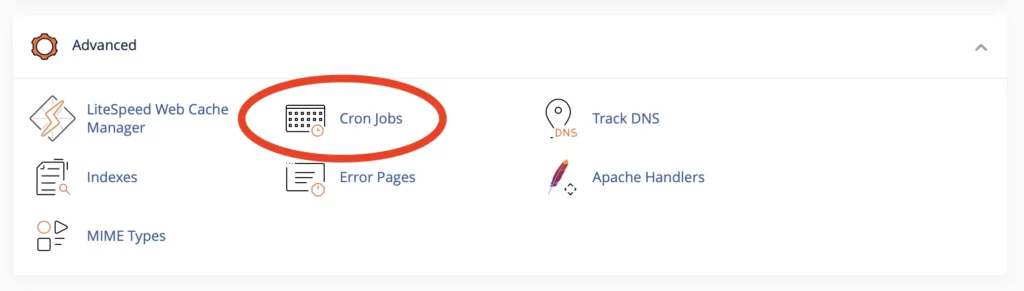
Step 2: Find the Cron Jobs Section
Once inside cPanel, search for the “Cron Jobs” icon (usually under the “Advanced” section). Click on it.
Step 3: Choose Your Timing
This is where things get a little technical, but cPanel makes it easier with a simple dropdown menu.
You’ll see fields for:
Minute (0-59)
Hour (0-23, where 0 = midnight)
Day (1-31)
Month (1-12)Weekday (0-6, where 0 = Sunday)
Common Examples:
Run every day at midnight:0 0 * * *
Run every hour at the 30-minute mark:30 * * * *
Run every Sunday at 3 AM:0 3 * * 0
If you’re unsure, cPanel has a handy “Common Settings” dropdown that auto-fills these values for you. Just as a side note, some shared hosting providers don’t allow cron jobs less than 5 minutes. if you’re not sure you can ask support.
Step 4: Enter the Command to Run
Now, you need to tell the cron job what to run. This could be:
- A PHP script: [ Example ]
/usr/bin/php /home/username/public_html/script.php
- A cURL request: [ Example ]
curl -s https://yourdomain.com/task.php
- A custom shell command: [ Example ]
/bin/bash /home/username/backup.sh
Of course, Replace /home/username/ with your actual server path.
Step 5: Save & Test
Once you’ve set the schedule and command, click “Add New Cron Job”.
Troubleshooting Common Issues
Permission Errors? Make sure your script is executable (
chmod +x script.sh).
Path Problems? Use full server paths (find them via
which phpin SSH).
Not Running? Check email notifications (if enabled) or server error logs.