
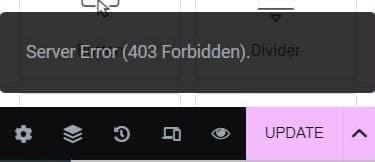
A 403 forbidden error looks critical enough to cause panic. In this blog post, we will discuss what the Error 403 is and how to fix it.
What is the Forbidden Error 403?
The Forbidden Error 403 is an HTTP status code that indicates that you do not have permission to access the requested resource. This error message can occur when you try to access certain pages or content on your website that you are not authorised to view.
What examples, can cause this error?
- A bad plugin update
- A corrupt .htaccess file
- Incorrect file permissions
- Security plugins
How to fix the Forbidden Error 403?
1. Clear your browser cache and cookies
Clearing the cache and cookies in your browser is one of the simplest and most popular fixes for the Forbidden Error 403. Sometimes your browser’s cache and cookies can get corrupted or out of date, which can interfere with your website.
2. Check your website’s file permissions
Incorrect file permissions are yet another potential root cause of the Forbidden Error 403. The files and folders on your website are protected by particular permissions that control who can view and edit them.
Make sure that your folders have the permission 755 applied. All of the files on your WordPress website should have the file permission 644. You can learn more here about file permissions.
3. Caused by the corrupt .htaccess file
A 403 forbidden WordPress error may occur due to a corrupted .htaccess file. First login to your FTP client, then backup your .htaccess file, then delete it.
If you can’t see a .htaccess file, it might be hidden. ( Using FileZilla? ) Click the Server tab at the top. Select Force showing hidden files.
Then go to your WordPress admin area and go to Settings > Permalinks

Choose how you would like the Permalinks structure to look like.
Click the Save Changes button at the bottom of the page to generate a new .htaccess file. Then hopefully your issue is now resolved.
4. Disable any security plugins
The Forbidden Error 403 might be brought on by a security plugin that you have set up on your website. The error message may appear as a result of overly aggressive security plugins blocking appropriate queries.
When you use a security plugin like Wordfence, this is fairly typical. In Wordfence’s Firewall settings, you may enable Learning Mode. This should teach Wordfence that saving with Elementor is normal (a false positive).
You could try and temporarily disabling any security plugins, to see if they are the culprit.
5. Contact your hosting provider
If none of the above solutions work, it may be time to contact your hosting provider. Forbidden Error 403 can be caused by server configuration issues or being blocked in their firewall, and your hosting provider may need to make modifications to remedy the issue. be sure to provide them as much information about the problem as possible.